AI tracking on Laia cameras automatically keeps people in frame during a video call or presentation. In this article, we review its main tracking modes, applications, and compatible models to help you choose the best solution.
More and more classroom, auditorium, and meeting room projects are incorporating cameras with automatic tracking. During the pre-sale phase, the questions are usually the same: which tracking mode is best suited for each space, how do Presenter, Zone, and Hybrid differ, and which camera from the lineup is included in each option?
In this article, we’ll take a look at how AI tracking works in Laia, what modes are available, and which ones each model offers. We’ll focus on the PTZ Broadcaster Pro 25X (NDI 3G and Fiber) and C-Pro Infinity, as well as the video conferencing bars C-Pro UP 4K Pro and C-Pro UP Infinity 10X. At the end, we’ll review other cameras in the lineup that also feature tracking.
What Is AI-Powered Tracking?
AI tracking allows the camera to recognize people appearing in the image and adjust the frame on its own, without an operator. In Laia's PTZ cameras, this feature is called Monocular Tracking: all detection is performed using the image sensor itself and a built-in AI processor, without depth sensors, auxiliary cameras, or a dedicated computer.
The camera does not react to just any movement, but only to human figures. Once the subject is in focus, the camera should not shift the frame. Depending on the model, detection is based on the body's silhouette or facial recognition.
audio is now available on video conferencing bars. Its microphone arrays detect who is speaking so the camera can focus on that person.
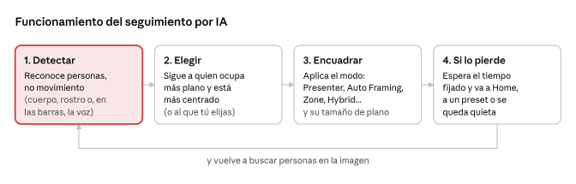
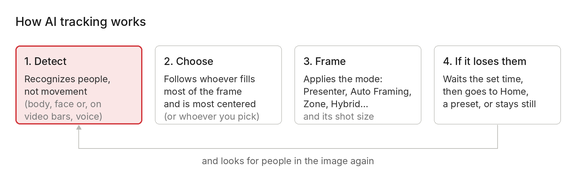
All models operate according to the same cycle:
Spanish Version
English Version
AI Monitoring Cycle · 4 Steps
The entire process takes place inside the camera in real time, so you don't need a connected computer for the tracking to work.
Tracking Methods
The product line includes six tracking modes. We provide a general overview of them here; in the section for each camera, we list the exact names as they appear in the camera's interface.
Presenter Tracking
The camera selects a person and continuously tracks them using pan, tilt, and zoom, keeping them within the configured frame. This is commonly known as body tracking, and it’s the mode with the most settings. It works well with a single speaker who moves freely.
When there are multiple people in the frame, the AI tracks the person who occupies the largest portion of the image and is closest to the center. If that’s not the right person, you can select another one using the web interface, the remote control, or—on some models—a gesture.
Auto Framing
The camera doesn't follow a specific person; instead, it adjusts the frame so that all detected participants are included. If someone enters, it widens the frame; if they leave, it narrows it. It doesn't require zones or boundaries, so it's the fastest way to get started.
Zone Tracking
The installer stores up to four fixed shots that, together, cover the space from left to right. When the presenter moves from one area to another, the camera frames the assigned shot. The image is more stable than in Presenter because the camera does not move with every step, but only when the presenter changes areas.
Most startup errors occur in this mode. The most common issue is that the transition between zones appears choppy, and this is almost always because the zones do not overlap enough. The solution is to recreate them from left to right, ensuring a minimum overlap of about 15% between each zone, and to test them one by one using the RUN button before considering the installation complete. It’s also important to note that zones can only be saved when tracking is disabled.
Hybrid Tracking
It combines the two previous methods. Within a preset zone, the camera maintains a fixed shot; outside those zones, it follows the speaker in real time. In a classroom with a lectern and a whiteboard, for example, both are configured as zones with a fixed close-up shot; when the teacher walks between them, the camera follows him or her, and when he or she leaves the space, it returns to the wide shot. The zones are configured the same way as in Zone Tracking, with the same precautions.
If one of the zones never activates, check to see if its box is checked: stored zones that are not checked are ignored during monitoring.
Stage Tracking
A left and right boundary are defined, and the camera only follows the speaker as he or she moves between them. If the speaker leaves the area, the camera triggers the action configured for losing the subject. This is intended for scenarios involving lateral movement.
Speaker Framing
This is the voice-activated mode. The microphone array locates the person who is speaking, and the camera frames them. When someone else speaks, the shot shifts to them. This is the standard mode for video conferencing bars.
What Monitoring Brings to Each Space
Before discussing models, it’s a good idea to ask the customer how the room will be used. The answer will determine the type of tracking needed, and from there, which cameras offer that feature.
Meeting and Videoconference Rooms
In a hybrid meeting, remote participants often see a fixed wide-angle shot in which it’s hard to tell who is speaking. Tracking solves two issues: the shot adjusts to the people in the room without anyone having to touch the camera (Auto Framing), and the image focuses on whoever is speaking (Speaker Framing). This allows remote attendees to follow the conversation as if they were sitting at the table.
Both modes are located on the video conferencing bars:
- C-Pro UP 4K Pro: Participant tracking and speaker tracking. For huddle rooms with 4 to 6 people.
- C-Pro UP Infinity 10X: Auto Framing and Speaker Framing. For medium and large rooms. If the room is also used for presentations, add Speaker Tracking to follow a speaker who is moving around.
If you only need group framing without voice tracking, PTZ cameras also offer these features: Auto Framing on the C-Pro Infinity , Group Framing on the Broadcaster Pro 25X NDI 3G, and Multi-Person Tracking on the Fiber.
Classrooms and training rooms
In teaching, tracking allows the instructor to move freely without leaving the frame and without the need for a technician to handle the recording or live-streaming of the class. With Presenter Tracking, the camera follows the instructor at all times. With Zone Tracking or Hybrid Tracking, fixed shots of the whiteboard or lectern are added, ensuring that whatever is written or projected is clearly visible to remote viewers.
The three modes are available in both PTZ families:
- C-Pro Infinity: Real-Time Tracking, Area Tracking, and Hybrid Tracking.
- Broadcaster Pro 25X NDI 3G: Presenter, Zone, and Hybrid.
- Broadcaster Pro 25X Fiber: Single-Person Tracking, Zone Tracking, and Hybrid Tracking.
Corporate Presentations and Events
At a town hall or an on-stage presentation, the speaker moves from side to side, and there are often people near the stage who you don't want to include in the frame. Stage Tracking limits tracking to the active area and ignores what's happening outside of it.
This mode is only available in the C-Pro Infinity. On the Broadcaster Pro 25X Fiber, you can achieve similar behavior by using Single-Person Tracking with the tilt axis locked (Tilt Lock).
Auditoriums, churches, and events
In these settings, tracking shots reduce the number of camera operators needed without compromising the quality of the production. Hybrid Tracking is the most comprehensive mode: static shots of the lectern or the altar, with tracking shots as the speaker moves between them. When the speaker leaves the area, the camera returns to a wide shot, just as a director would.
Hybrid Tracking is in the C-Pro Infinity and on both Broadcaster Pro 25X (Hybrid on the NDI 3G and Hybrid Tracking on the Fiber). In large venues, where the camera is far from the speaker, the Broadcaster Pro is often chosen because its 25X optical zoom allows for close-ups from a greater distance.
Modes Available on Each Camera
Broadcaster Pro NDI 3G
The AI Tracking menu offers four modes in Tracking Mode: Presenter (the default mode), Group Framing, Zone, and Hybrid. In Presenter mode, the frame is adjusted using Shot Size (Mid, Close, Custom, or Wide) and Shot Comp (Left, Mid, or Right). When there are multiple people, Human Frame lets you choose who to follow. You can also disable Auto Zoom or Auto Tilt so that the camera does not zoom or move vertically during tracking.
If the camera loses track of the presenter, Preset#1 Reload returns it to preset 1 once the Reload Time has elapsed. It also includes Gesture Control, which is disabled by default.
Broadcaster Pro 25X Fiber
On the Fiber model, the modes are located in the Auto Framing menu and are called Single-Person Tracking, Multi-Person Tracking, Zone Tracking, and Hybrid Tracking. Detection is based on facial recognition. The Single-Person framing is adjusted using Composition Mode (Center, Left, Right, or Custom) and Composition Size (Half-body or Full-body), while the Multi-Person framing is adjusted using Target Size.
Startup Position defines where tracking begins (Current Position, a preset, or Home), which is also the position to which the camera returns if it loses the subject after the Tracking Loss Reset (5 to 60 seconds, or no return). With Pan Lock, Tilt Lock, and Zoom Lock, you can lock any of the three axes during tracking.
This is the model with the most gesture controls: turn tracking on and off, zoom in and out, and switch the focus to the person making the gesture.
C-Pro Infinity
It is the PTZ with the most modes in the lineup. The Monocular Tracking menu includes Real-Time Tracking, Stage Tracking, Area Tracking, Auto Framing, and Hybrid Tracking. The settings are common to all modes: Sensitivity (High, Middle, or Low), Figure Size (Close, Half, Full, or Custom), Character Position (Left, Middle, or Right), Lost Target Action (Return to Home, Go to Preset 0, or Stay in Position), and Target Lost Time (0 to 60 seconds).
Not all settings are available in every mode. In Real-Time Tracking, all settings can be used; in Area Tracking and Auto Framing, neither the size nor the position of the subject can be changed; and in Hybrid Tracking, they are fixed. This behavior is by design.
To manually choose who to follow, use Click Track, which lets you select a person by clicking on them in the preview.
C-Pro UP Pro
It is an all-in-one USB bar for huddle rooms accommodating 4 to 6 people. It features a 4K camera with a 110° horizontal field of view, 5X digital zoom, and a motorized pan-tilt head, as well as a microphone beamforming with a 6-meter pickup range, and a speaker.
Tracking is selected from the on-screen menu and has two modes. Participant tracking automatically frames everyone seated at the table. Speaker tracking uses the microphone to locate the person speaking and pans the shot toward that person using digital zoom.
To ensure that the camera cut isn't jarring, you can choose a smooth or instant transition, a slow or normal tracking speed, and a zoom range from 1.5X to 5X. The remote control includes shortcut buttons for each mode and for exiting tracking mode.
C-Pro UP Infinity 10X
It is a full-featured videoconferencing system with two 4K cameras (one wide-angle and one PTZ with 10X optical zoom), eight MEMS microphones with an 8-meter pickup range, speakers, and a codec.
Tracking is configured in Intelligent Framing (Smart Mode in the web interface) and has three modes, in addition to "Close " to disable it:
- Auto Framing frames everyone in the room.
- Speaker Framing combines audio and video to identify who is speaking in a meeting with multiple participants and center the shot on that person.
- Speaker Tracking follows a speaker as they move around the room, just as a PTZ camera would in Presenter mode. This is useful when the room is also used for training or presentations.
Since it has two cameras, you can choose which one to broadcast: the PTZ, the panoramic view, or both combined in Picture-in-Picture, Main-Aux Equal Split, or Auxiliary Dominant. The framing response is adjusted using Smart Framing Sensitivity (High, Medium, or Low). User presets can only be used with Close tracking.
Framing Adjustments and Lens Loss
Once set up, the camera operates on its own, and the user hardly has to do anything. Tracking can be enabled, disabled, or switched to a different mode using the remote control, the on-screen menu, the web interface, or—at Broadcaster Pro —using gestures.
Although each camera refers to them by a different name, there are three settings that are common across the entire lineup and that determine how the final result looks:
- Shot size: how much the camera zooms in on the person, ranging from a close-up to a full-body shot.
- Subject's position: whether the person is in the center of the image or off to one side—for example, to make room for a screen or a chart.
- Action When the Subject Is Lost: What the camera does when the speaker disappears, and how many seconds it waits before taking action.
This last adjustment is the cause of one of the most common mistakes. If the action to take when the subject is lost from view isn’t clearly defined, when the speaker steps out of the frame, the camera either stays in a meaningless shot or returns to its home position—which isn’t always a good shot. It’s best to set a preset with a wide shot that does justice to the room, because that’s exactly what the viewer will see. And if the camera returns to that shot every time the speaker is momentarily blocked by a lectern or someone walking in front of them, it’s a good idea to increase the delay before the camera moves.
On cameras that allow you to adjust it—such as the C-Pro Infinity —sensitivity is the other setting that causes the most issues. If it’s set too high, the camera jumps around and tracks the speaker’s every movement. You need to lower it and, at the same time, increase the lens loss time. This adjustment should always be made with people in the room, never with the room empty.
For installation and demos, we recommend enabling the detection boxes (Human Frame in the C-Pro Infinity ). They display on screen which people the AI is detecting and which one it is tracking, which is very helpful for understanding and adjusting the camera's behavior.
Other cameras in the tracking series
C-Pro 4K 10X
It is a 4K PTZ camera with a 10X optical zoom designed for USB video conferencing. Its image tracking is based on facial recognition with lens locking and is controlled by four gestures: start tracking, zoom in, zoom out, and disable tracking—all without the need for a remote control. It also features voice tracking with a four-microphone array that covers 180° horizontally.
Cute Bullet 4K AI
It is a fixed camera with no moving parts: framing is done digitally (ePTZ), with up to 3X digital zoom. It operates differently from the rest of the line: when someone stands up, the camera zooms in for a close-up, and when they sit down, it returns to the wide-angle view. If several people stand up at the same time, you can choose between a close-up or the wide-angle view.
It allows you to define up to 10 mask zones so that the camera ignores televisions, projectors, doors, or windows. It's the right choice for capturing a student or attendee who is participating from their seat.
Voice Tracking: Technology VoiceTrack
In addition to video tracking, Laia works with the technology VoiceTrack: a microphone array locates the person speaking, and the camera pans toward them. This feature is available on both video conferencing bars—the C-Pro UP 4K Pro and the C-Pro UP Infinity 10X—as well as on the C-Pro 4K 10X.
The specific model of this technology is the C-Pro VoiceTrack M2, which features two cameras: a wide-angle camera and a PTZ camera. In voice-activated mode, it alternates shots seamlessly; while the PTZ camera refocuses on the new speaker, the wide-angle shot is displayed, and no camera movement is visible. It also includes image-based tracking modes, such as tracking the speaker within a designated area, or a hybrid mode with up to four fixed shots.
As a general rule, visual tracking is the best option when the speaker's movement is important, and voice tracking is best when the focus is on who is speaking during a panel discussion or debate.
Support and Manuals
To resolve these and other issues that may arise during installation, all documentation is available in the Support and Manuals section of the Laia website. There you’ll find user manuals and setup guides for each model, including menus, default settings, and step-by-step configuration procedures. If the issue isn’t resolved using the documentation, the technical support team is available at support@laiatech.com.
Training at Laia Academy
If you want to gain an in-depth understanding of the product line, prepare demos with greater confidence, and scale projects using the appropriate monitoring mode, we recommend the Laia Academy certifications, designed for sales teams, pre-sales teams, integrators, and wholesalers.